
Split Your Commits: Work vs. Personal GitHub

It’s increasingly common for individuals to have multiple GitHub accounts. You might have one tied to your work email and another that’s tied to your personal email.
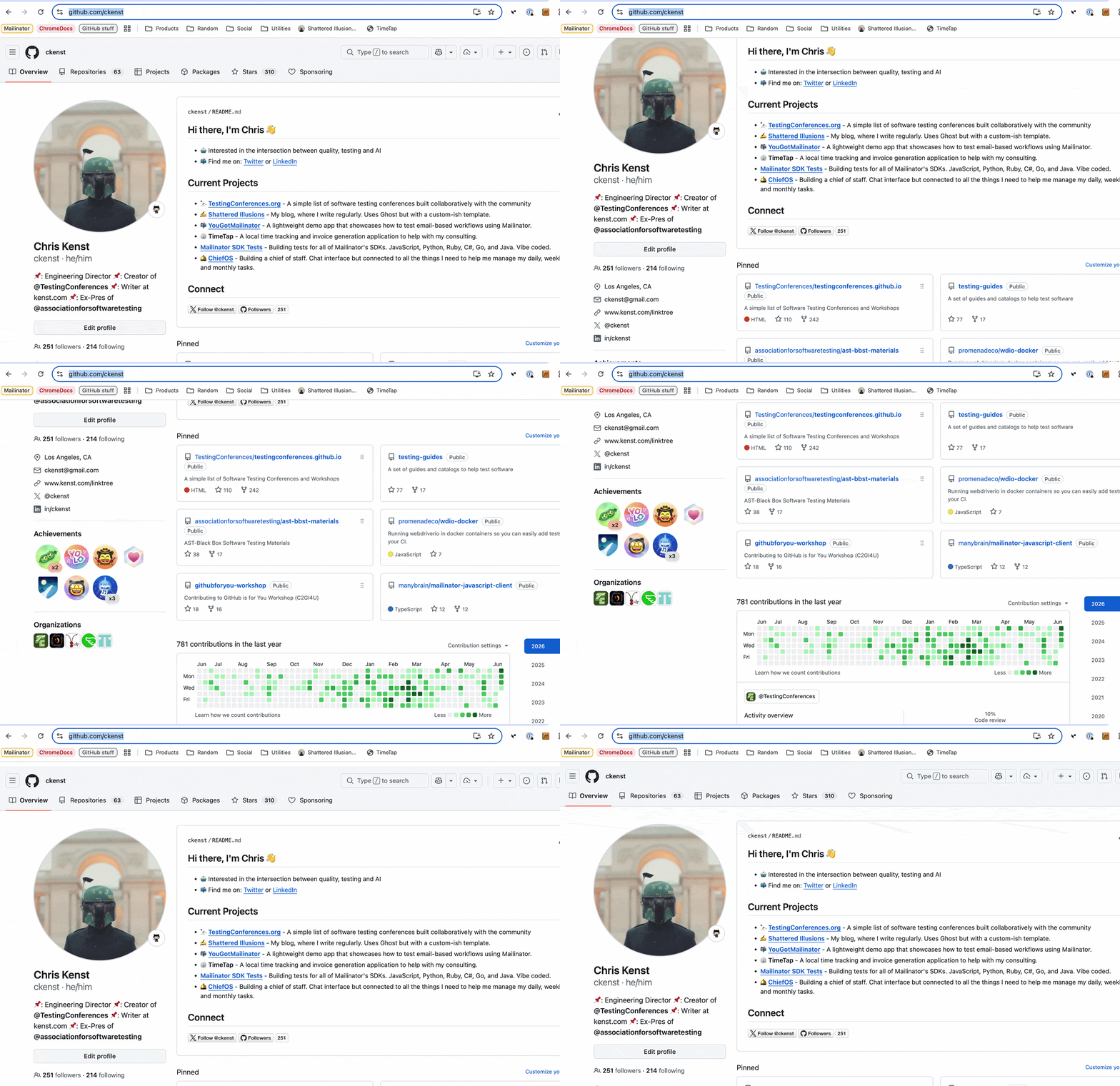
When you live in this world, it makes sense to configure your computer to support both GitHub accounts based on the kind of work you are doing. Any changes to work repos should use the work account, while contributions to open source projects or using your favorite agent harness configs will come from your personal account.
The most straightforward solution is to create a config that specifies your work and personal account details. Then when you download (clone) a repo, you simply tell the repo which account to use.
Generate Two SSH Keys
The first step is to generate SSH keys for your separate GitHub accounts. These act as secret passwords that your computer will use when authenticating.
ssh-keygen -t ed25519 -C "work@email.com" -f ~/.ssh/id_rsa_work

ssh-keygen -t ed25519 -C "personal@email.com" -f ~/.ssh/id_rsa_personal
Add Keys to GitHub
Copy the contents of each .pub file and add them to the SSH and GPG Keys section of your respective GitHub accounts.
Create a Config File
In the .ssh folder create a text file called config and add:
# Personal Account
Host github-personal
    HostName github.com
    User git
    IdentityFile ~/.ssh/id_rsa_personal
    IdentitiesOnly yes

# Work Account
Host github-work
    HostName github.com
    User git
    IdentityFile ~/.ssh/id_rsa_work
    IdentitiesOnly yes
Clone repos using the Alias
Instead of git clone git@github.com:org/repo.git use git clone git@github-work:org/repo.git
Which means if we are cloning down TestingConferences.org (my favorite example) it looks like this:
git clone git@github-personal:TestingConferences/testingconferences.github.io.git
This automatically configures the repo to use the Personal Account’s SSH configuration.
Check your name and email
To ensure your personal commits show up under your personal email and name, navigate to your personal repo and run this command once:
git config user.email "personal@email.com"
git config user.name "Chris Kenst"
This sets the email locally for just that repository, keeping your work email safely confined to your company's repos.
Set and Forget
This setup takes minutes to configure but saves you from the constant headache of messing with HTTPS credentials or accidentally pushing changes from the wrong account. Once it's done, you can seamlessly jump between work and open-source contributions without missing a beat!
Member discussion